PDF to PNG Converter Guide: Turn Documents Into Crisp Images in 2026
Sometimes a PDF just will not cooperate. You need a single page as a clean image for a slide, a social post, or a website, and copying and pasting ruins the quality. A good PDF to PNG converter solves this instantly by rendering each page into a sharp, lossless image you can drop anywhere. In 2026, the best of these tools run right inside your browser, so you skip installs and account signups entirely.
This guide explains when PNG beats other formats, how conversion actually works, and how to get the cleanest results for text-heavy documents. By the end, you will know exactly how to extract polished images from any PDF.
Why Choose a PDF to PNG Converter Over Other Formats?
PNG uses lossless compression. That means text edges, logos, and line art stay razor-sharp instead of blurring into the muddy artifacts you often see with JPG. For documents full of crisp type and diagrams, that difference is obvious at a glance.
PNG also supports transparency, which matters when you want to layer a converted page over a colored background or a presentation theme. JPG simply cannot do that.
PNG versus JPG at a glance
| Feature | PNG | JPG |
|---|---|---|
| Compression | Lossless | Lossy |
| Transparency | Yes | No |
| Best for | Text, logos, diagrams | Photos |
| File size | Larger | Smaller |
The rule of thumb is simple. Choose PNG when clarity matters more than file size, and choose JPG when you are compressing photographs for the web.
How Conversion Works Behind the Scenes
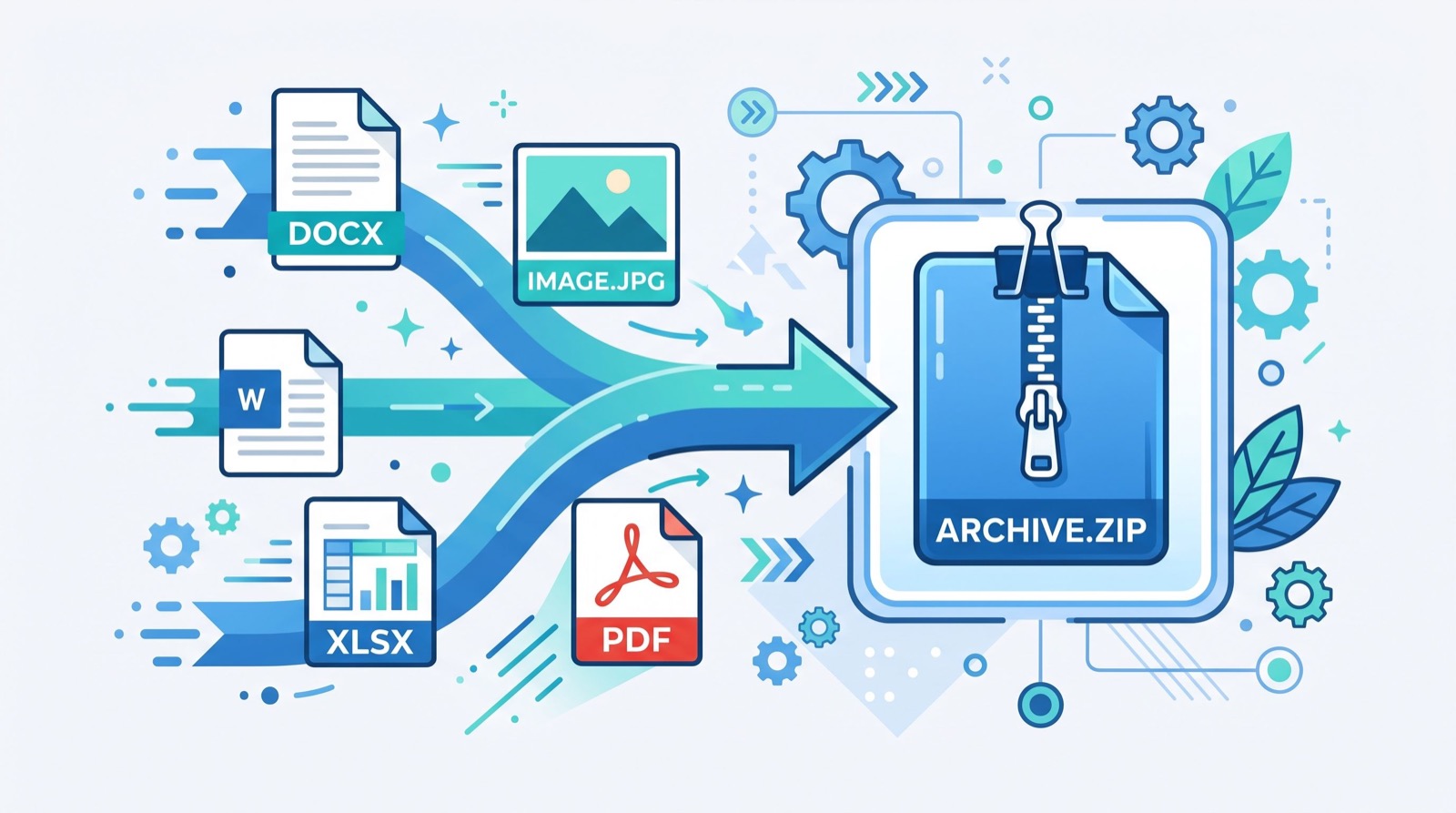
A PDF stores pages as a mix of vector instructions, embedded fonts, and raster images. When you convert, the tool renders each page at a chosen resolution and then saves that rendered output as a PNG raster image.
Resolution is the key lever. Higher DPI produces a larger, crisper image, while lower DPI keeps files small. For on-screen use, 150 DPI usually looks great; for print or zoomed detail, push toward 300 DPI.
Step-by-step conversion
- Open a reliable PDF to PNG converter in your browser.
- Upload or drag in your PDF file.
- Pick the pages you need, or convert all of them at once.
- Set the resolution based on screen or print use.
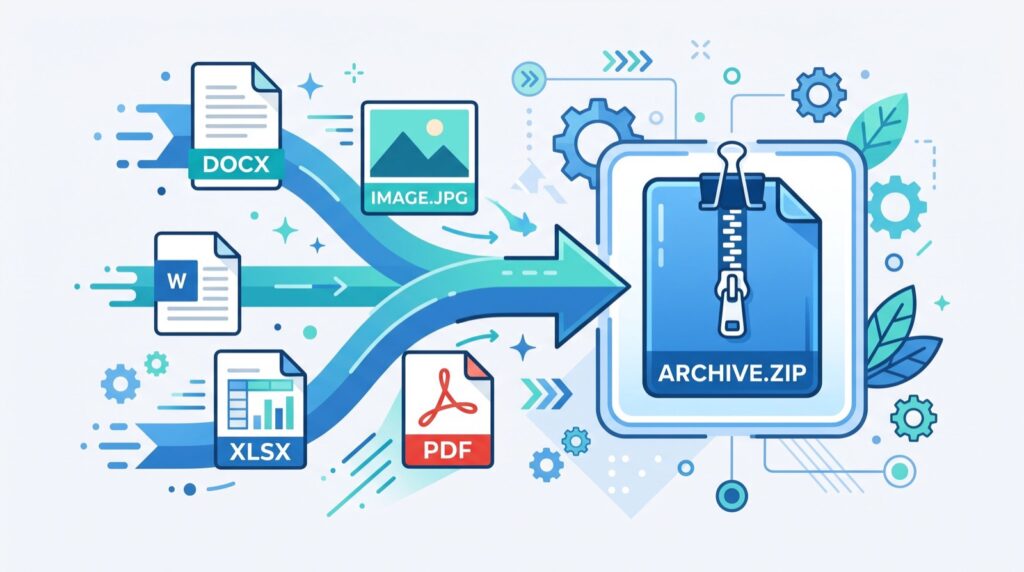
- Download each PNG or grab them as a zip.
Because quality browser tools process files locally, your documents never leave your device. That privacy advantage matters for contracts, invoices, and anything confidential.
Real-World Uses for Converted PNGs
Once you have crisp images, the creative options open up fast. Here are the uses I reach for most often.
- Dropping a clean page into a slide deck without blurry text.
- Posting an infographic page to social media at full clarity.
- Embedding a chart on a website where PDFs will not display inline.
- Grabbing a logo or seal from a branded document.
- Turning a flyer into a shareable image for messaging apps.
One of my favorite tricks: convert a document page to PNG, then feed it into a meme generator to add captions or callouts for a quick, attention-grabbing social post. It turns a dull report into something people actually stop to read.
A tip from experience
When I prepare training material, I convert every page at 200 DPI. That setting keeps file sizes manageable while staying crisp on 4K monitors. Test one page first, check the zoom, then batch the rest at the same setting to save time.
Is Online PDF to PNG Conversion Safe?
Safety comes down to where the processing happens. Tools that convert entirely in your browser never upload the file, which removes the biggest privacy risk. For sensitive paperwork, always confirm the tool works client-side.
For large organizations handling regulated data, it still pays to loop in reputable service experts who can set document-handling policies that match compliance rules. For everyday personal use, a trusted browser converter is both safe and fast.
If you want to understand how the PNG format itself is standardized, the W3C PNG specification documents exactly how the format preserves lossless image data.
Getting the Cleanest Output Every Time
A few habits make a noticeable difference in the final image quality.
- Match resolution to the destination: screen, print, or zoom.
- Convert from the original PDF, not a scanned or re-saved copy.
- Keep color PDFs in color; converting to grayscale loses brand tones.
- Crop in the image editor afterward rather than before conversion.
Choosing the Right Resolution for Your Project
Resolution decides whether your converted image looks crisp or blurry, and whether the file stays light or balloons in size. Getting it right the first time saves you from re-converting an entire document later.
Think about where the image will finally live. A page destined for a website needs far less resolution than one headed to a print brochure. Matching DPI to the destination keeps quality high without wasting storage.
Resolution guidelines by use case
| Use case | Recommended DPI | Why |
|---|---|---|
| Website or blog | 96–150 | Fast loading, screen-sharp |
| Slide decks | 150–200 | Clear on large displays |
| Print handouts | 300 | Sharp when physically printed |
| Archival detail | 300+ | Preserves fine text |
Organizing Your Converted Images
After converting a long document, you can end up with dozens of files named page-1, page-2, and so on. A little organization now prevents confusion later.
- Rename files to describe their content, not just their page number.
- Group related pages into a clearly labeled folder.
- Keep the source PDF beside the images in case you re-export.
- Add a date to the folder name so versions never collide.
These small habits pay off when a project resurfaces months later. I have saved hours simply by naming converted files clearly the first time, rather than guessing which page held the chart I needed.
Frequently Asked Questions
Will a PDF to PNG converter keep my text sharp?
Yes. Because PNG is lossless, text edges stay crisp as long as you convert at a high enough resolution. For most on-screen uses, 150 to 200 DPI looks clean.
Can I convert every page at once?
Most modern converters let you process an entire multi-page PDF in one pass and download the results together, which saves significant time on long documents.
Does converting change the original PDF?
No. Conversion creates new image files and leaves your source PDF untouched, so you keep the editable original safe.
Why is my PNG file larger than the PDF?
PNG uses lossless compression and stores every pixel, so high-resolution pages can grow large. Lower the DPI if you need smaller files for web use.
Final Thoughts
A dependable PDF to PNG converter turns stubborn documents into crisp, flexible images in seconds. Pick the right resolution, use a browser tool that respects your privacy, and you will get professional results every time. Open a free online converter today and transform your next PDF into the images you actually need.